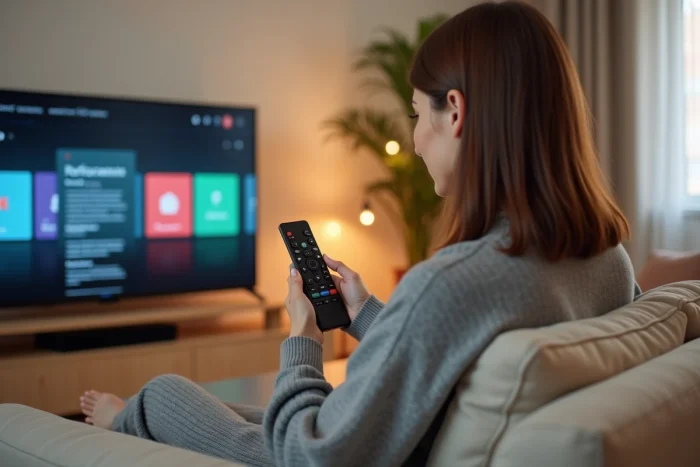
Your Smart TV displays a black screen on Netflix while the Wi-Fi works on all other devices in the house. Or you just plugged in a television in a second home without a fixed internet box. These two very common situations illustrate how much a TV’s internet connection depends on often underestimated parameters.
Firmware update and network compatibility on Smart TV
Before touching the cable or the router, check the TV’s software version. Proprietary systems (Tizen on Samsung, webOS on LG, Google TV on TCL or Hisense) receive updates that directly modify compatibility with network protocols and streaming applications.
Specifically, an outdated firmware can prevent Wi-Fi from connecting or cause random disconnections. Mirroring functions like Smart View, AirPlay 2, or Tap View sometimes only work with the latest version of the OS. If you found how to get internet on the TV via an online guide but the manipulation fails, this is the first reflex to have.
To force the update: go to system settings, then “About” or “Support,” and start the update search. If the TV is not yet connected, download the firmware onto a USB stick from the manufacturer’s website.
Wi-Fi or Ethernet cable connection: choose according to the setup
Wi-Fi remains the most commonly used connection method, but it is not always the most reliable. Two load-bearing walls between the router and the TV can reduce the speed by three or four times.
When the Ethernet cable changes everything
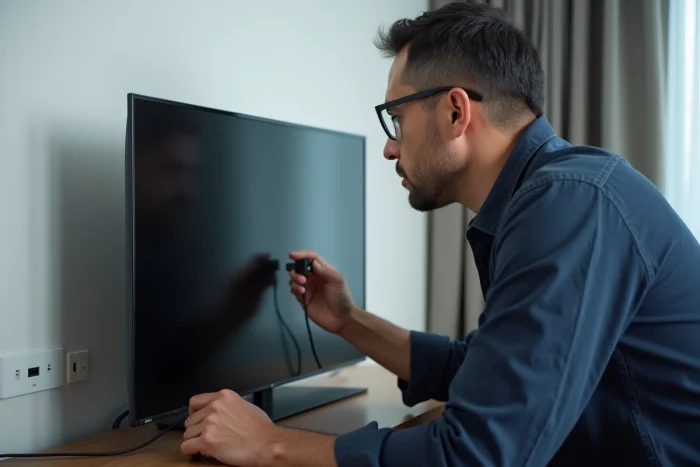
The Ethernet cable guarantees a stable speed and minimal latency. If your TV is located near the internet box, this is the simplest and most robust solution. You plug it in, select “Wired Connection” in the network settings, and the TV automatically retrieves an IP address.
For setups where running a cable is impossible, the powerline adapter (CPL) is often an overlooked alternative. It uses the home’s electrical network to carry the internet signal to a socket near the TV.
Optimizing Wi-Fi for the Smart TV
If you stick with Wi-Fi, a few adjustments can make a difference:
- Connect the TV on the 5 GHz band rather than 2.4 GHz, as the speed is significantly higher at short distances, even though the range is more limited
- Assign a fixed IP address to the TV in the router settings to avoid addressing conflicts during reconnections
- Disable the energy-saving mode of the Wi-Fi module in the TV settings, as some models cut the connection during standby
Feedback varies on this point depending on the brands, but disabling network energy-saving resolves most issues of nighttime disconnection.
Internet on the TV without a fixed box: tethering and portable router
The question arises more and more often outside the primary residence. In a motorhome, in a second home, or in temporary housing, there is no internet box. We then rely on the mobile network.
Tethering 4G or 5G from a smartphone works with most recent Smart TVs. You activate the mobile hotspot on the phone, then connect to it from the TV’s Wi-Fi settings, just like any other network.
The main drawback remains data consumption. One hour of streaming in high definition consumes several gigabytes. For regular use, a dedicated 4G/5G router with a data SIM card offers better comfort: more stable signal, better range, and the phone remains free.
Casting and screen mirroring: the Smart TV as a connected monitor
In practice, many people do not browse directly on the TV. They search for content on their smartphone and then display it on the big screen. Casting protocols have improved so much that the TV serves more as a giant monitor than as an autonomous browsing terminal.
Samsung, LG, TCL, and Hisense now natively integrate Google Cast, AirPlay 2, or Miracast. For casting to work:
- The smartphone and the Smart TV must be on the same Wi-Fi network
- The application used (YouTube, Chrome browser, video player) must support the corresponding cast protocol
- The TV’s firmware must be up to date, or else the cast icon may disappear or the connection may fail
This method bypasses the limitations of the TV’s built-in browser, which is often slow and not very user-friendly with a standard remote control.
Native VPN on Smart TV: securing browsing directly
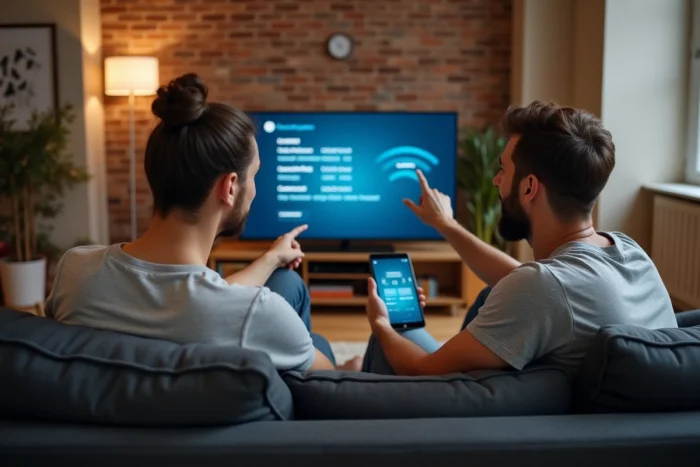
Recent Smart TVs are starting to offer an integrated VPN client or official compatibility with certain VPN services. This allows you to encrypt traffic directly from the TV, without configuring the VPN on the router or going through an intermediary computer.
The interest goes beyond simply unblocking geo-restricted streaming catalogs. On a shared Wi-Fi network (vacation rental, collective residence), the VPN protects your account credentials. Not all models support it yet, but the feature is becoming more common on TVs running Android TV and Google TV.
For TVs that do not support a native VPN, configuring the VPN directly on the router remains the only viable option. It’s more technical, but it covers all devices connected to the home network at once.
The choice between Wi-Fi, Ethernet, mobile tethering, or casting primarily depends on where the TV is located and the available infrastructure. A Smart TV in a wired living room does not have the same needs as a screen set up in a converted van. Starting from the installation constraints rather than the TV model avoids most of the unpleasant surprises during setup.